In this article, we will break down how to view your teams reports as a team manager on your Learning Platform.
The first step is to log in, and upon doing so, you will see a single 'Report' Tab on the top of your Dashboard.

By clicking on this, you will see that you now have access as a reporter to the Group Reports, Course Reports, and User Reports. You can only view the reports of people who are assigned to you within your Group!
The recommended area to see your teams progress is under Group Reports, where you will get a wide view of everyone within your team, the courses they are assigned, and the completion rate of each person for each course.
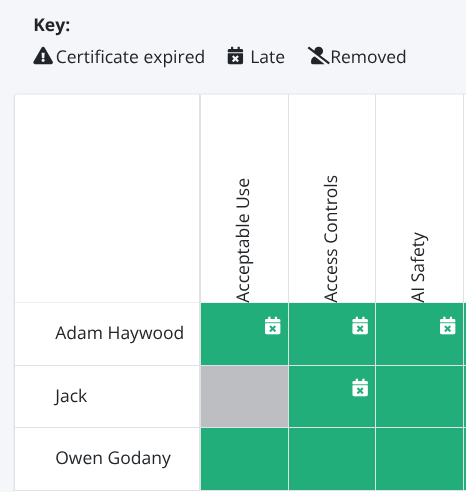
As you can see within the Group Report example above, you are provided with a super simple overview of everybody, and are also given a Key to help break down the statuses of the users within your report!
Along with this, a simple colour scheme is used for completion rates throughout; Green - Course Complete, Grey - Course Not Started, Blue - Course is In Progress.
You are also able to narrow down your reporting search, if you are just after a single assignment.
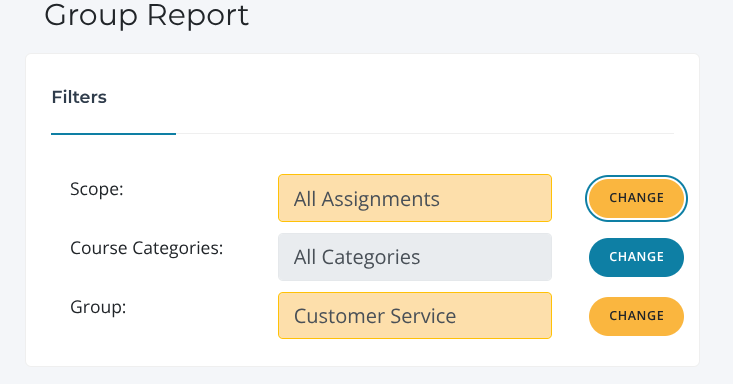
Using the Scope Filter for All Assignments, click 'Change'. This will bring up a list of all of your assignments, which you can then individually pick out to report upon.
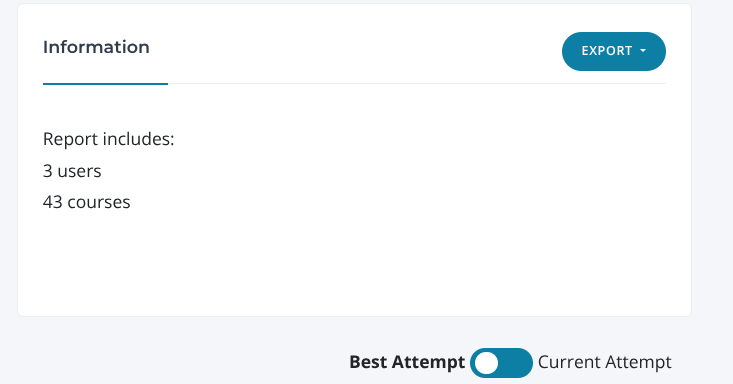
All of these Assignments can be Exported from the Group Report page, and can be seen and done below, using the 'Export' button on the right.