Within this guide, you'll learn how to create your course and embed the necessary content using an embedded code!
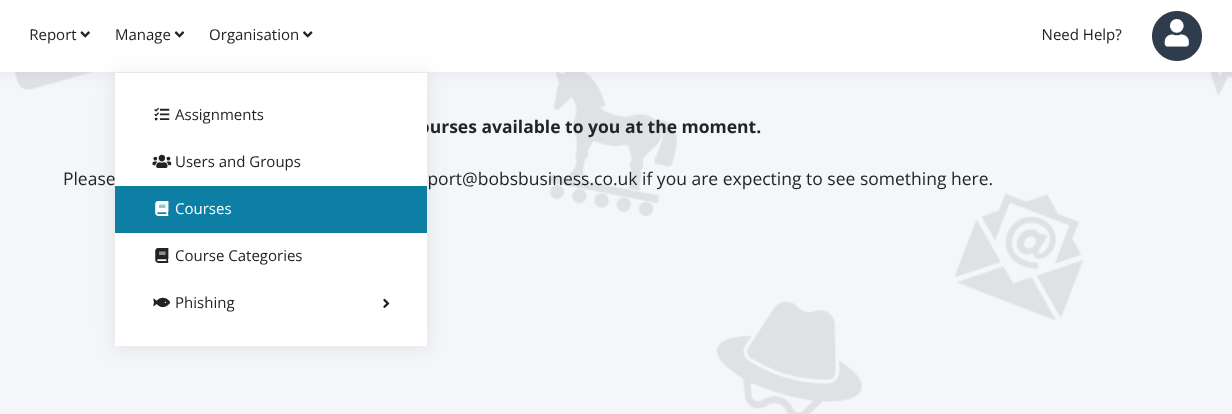
The first step is to ensure you have admin access on your learning portal, as we will be making a new course. To do this, go to the 'Manage' tab at the top, and select 'Courses'.
Once selecting this page and coming across all of our content, please select 'Add Course' in the top right.
Now you are making the new course, you can begin to fill out the details of the module, such as the Title, the category of the training, and even a description to help set learning objectives and notes for learners!
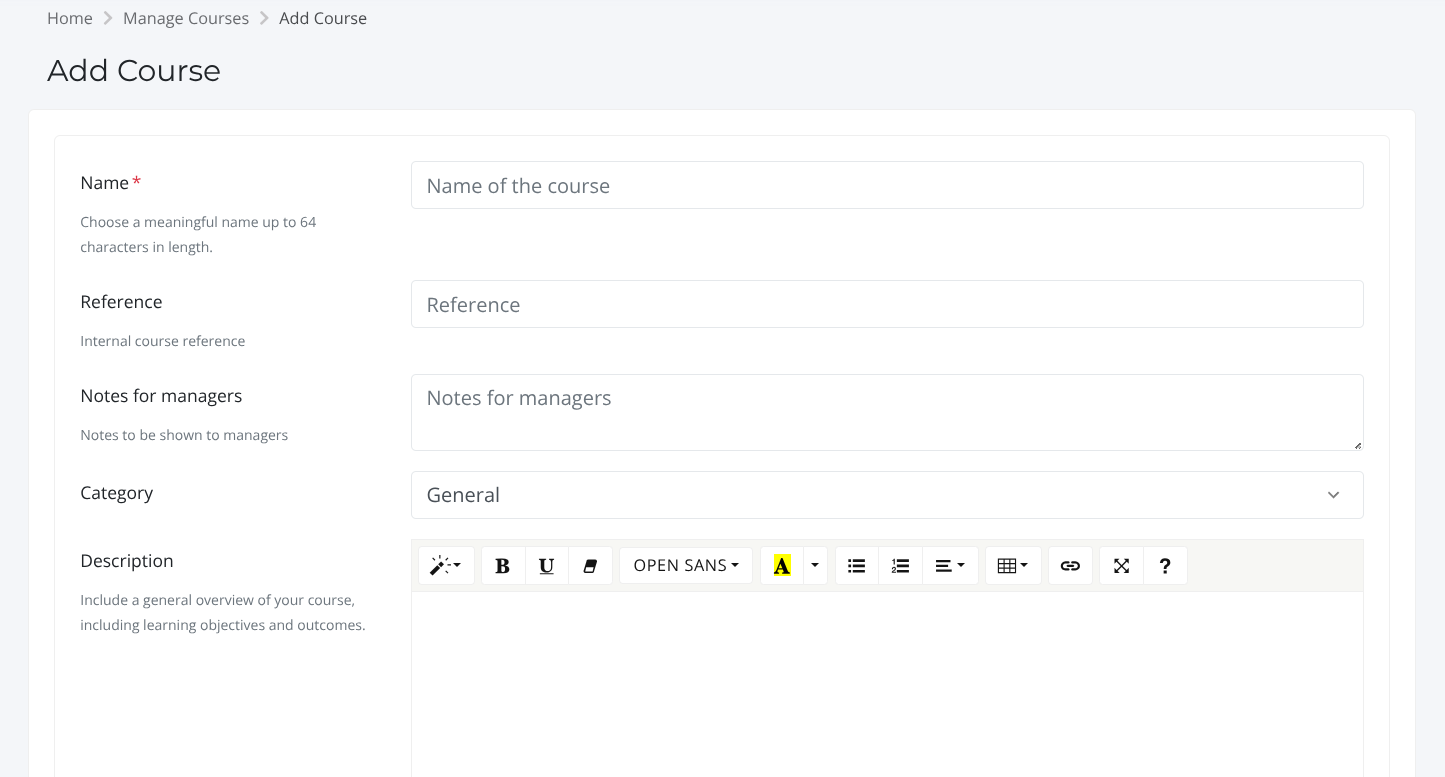
After completing this and also adding a Module completion time, you can click save!
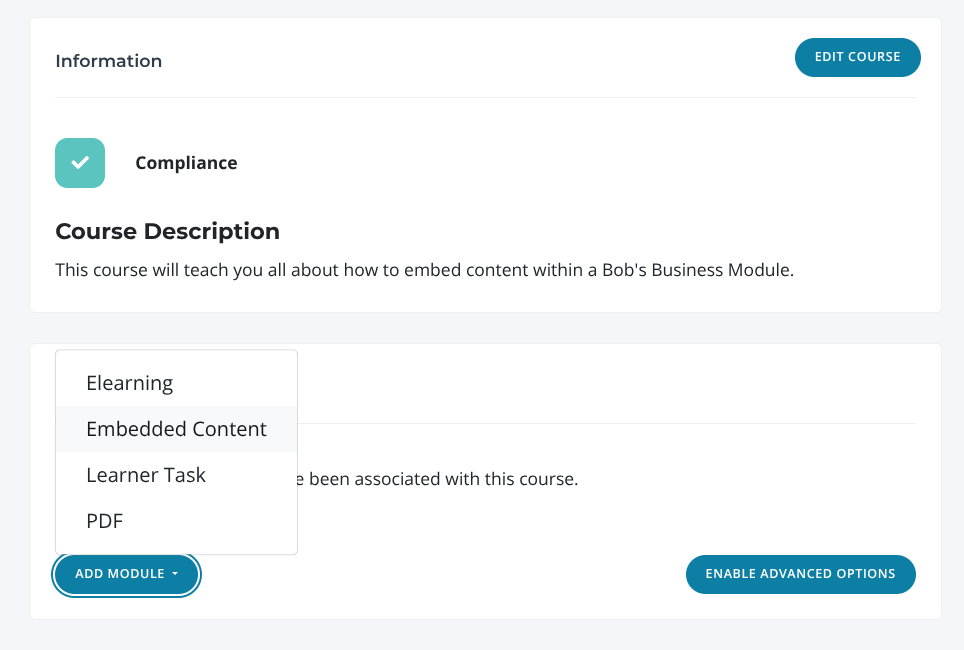
Upon saving, you will come across the following screen, where you need to click the 'Add Module' button, and select 'Embedded Content'.
There will now be some more details about the module for you to add, such as the module title which will be seen by users, and module format, which outlines the format of the embedded content e.g. eLearning, Quiz, Video etc.
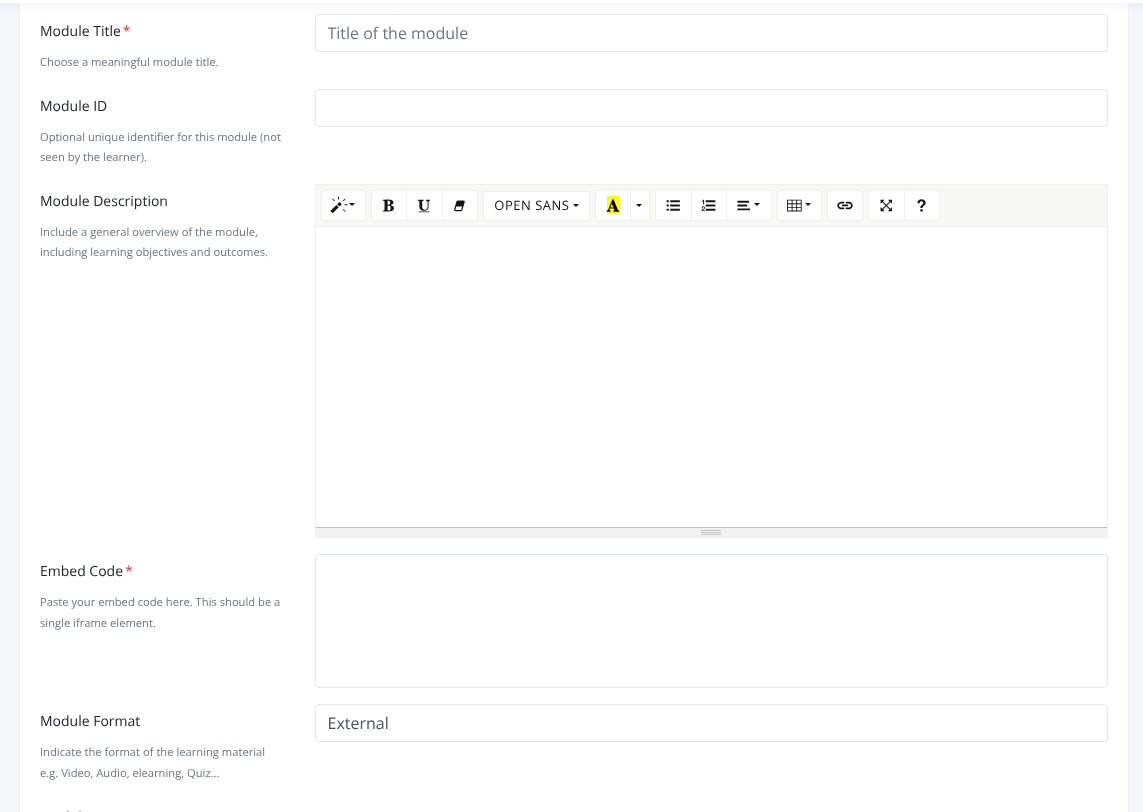
You will also be prompted to now add the embed code. You can get an embed code from the website where the content is hosted, typically by finding a "Share" button or an "Embed" option and then copying the HTML code provided.
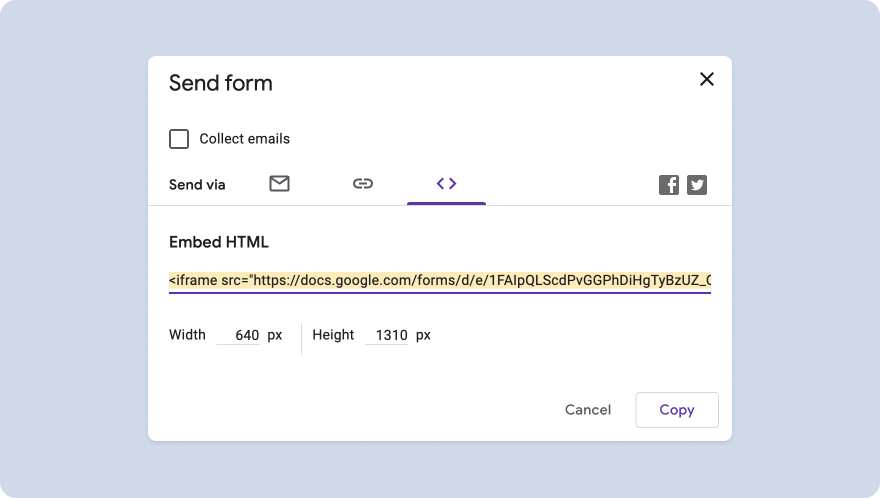
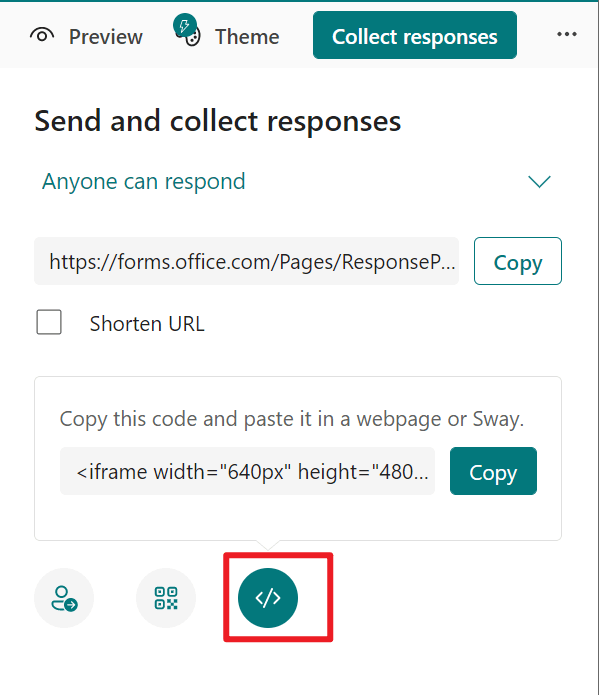
For example, you can find the Embed code on Google Forms by going to the Google Form, clicking the 3 dots in the top right and selecting "Embed HTML". Here is where you can find this code, as well as for Microsoft Forms too which you can find by navigating to the form's "Collect responses" settings and select the Embed option, represented by the </> icon.
Once all of the additional data is filled out, you can once again click save!
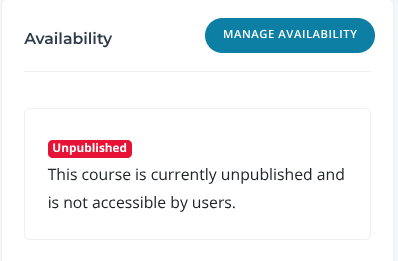
You have now successfully Embedded your required content into a Bob's Business learning module! Your last step is to publish this so users can access this training when needed.
To do this, simply go to the Availability on the right hand side of your screen, click 'Manage Availability', and use the top tick box to Publish this and save!