This article will explain how to set up for your account and how to login afterwards.
The first step is to log into your learning portal like usual, and then when on the portal home screen, click the person icon in the top right. This should bring up this list of options for your account:
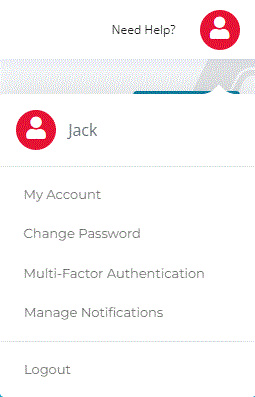
Go ahead and click the multi-factor authentication option, where you will be told why having multi-factor is important. You can then press the big button at the bottom that says "add multi-factor authentication".
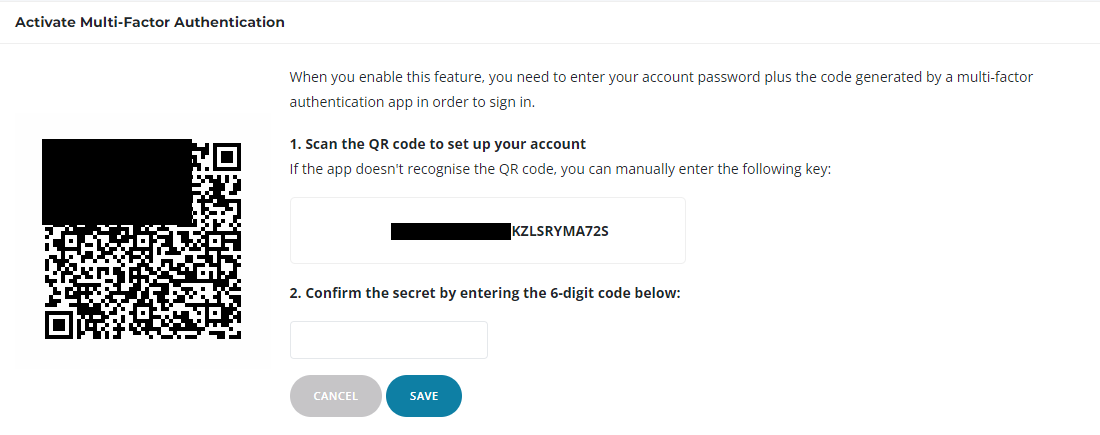
After this you will be brought to the page to begin setting this up. This will include a QR code you will have to scan, as well as an optional code you can use if the QR code isn't recognised. Once you have scanned this QR code, a one time obscure 6 digit code should be visible, go ahead and put this into the box where prompted, and click save.
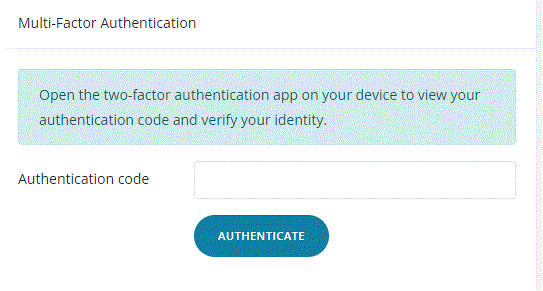
After this, when you attempt to log in again, you will be shown a prompt to enter the authentication code as shown below.
If you have any issues, please contact support@bobsbusiness.co.uk.